Posts Tagged ‘apache’

CSS Styling Apache Directory Listings.

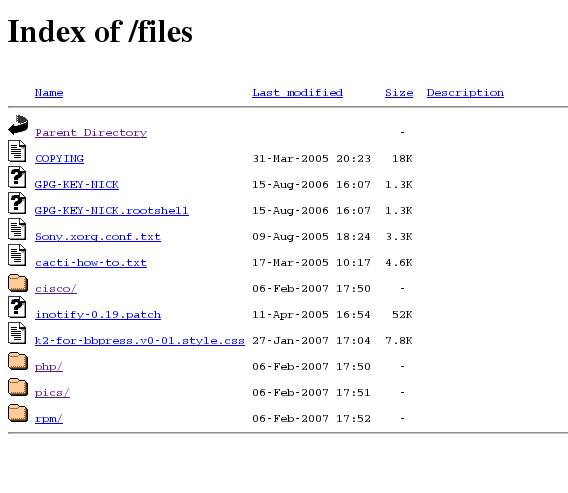
Before I change Apache
Before.

As part of my website overhaul, I’ve finally gotten round to styling my /files/ directory. I was surprised at how easy it was actually, and the benefits far out way the time taken to set it up, not only does this part of the site now “fit in”, but I can apply analytics tracking and adsense ;) I’m sure there probably is a wordpress plugin that can achieve the same thing… probably better, but I find my list of plugins ever growing and since I don’t need on for this I figure if Apache can do it, let Apache do it!

The work can be done in one of two ways either by pasting Apache directives into a .htaccess file (in the directory you want to apply conf to), or in your httpd.conf you can wrap it all up in a <Directory> tag… something like <Directory "/var/www/html/files/"> foobar </Directory>; below is an example of a .htaccess file as that will apply to most people:


RewriteEngine Off
AddType text/html .shtml
AddOutputFilter INCLUDES .shtml
Options Indexes Includes
IndexOptions FancyIndexing SuppressHTMLPreamble XHTML IconsAreLinks FoldersFirst SuppressDescription
HeaderName /files/HEADER.shtml
ReadmeName /files/README.shtml

Since my site uses wordpress with “pretty permalinks” enabled, the 1st thing I needed to do is disable mod re-write for the directory where I wanted listing enabled. Now if you check my /files/ page you’ll notice that the page title and tag line under “[LINICKX].com” change depending on what directory you are viewing, this is done with “Server Side Includes” (SSI), so the next two options in the above config set that up.

Now to take a look at the actual directory listing setup, it might be worth you taking a look at the Apache documentation for a full description, but the important ones to note are Options Indexes Includes to enable directory listing and switch on SSI, then you need IndexOptions SuppressHTMLPreamble XHTML to disable the default headers so that we can setup our style sheet and favour xHTML over HTML. Apache 2.2 users also have IndexStyleSheet available, but since I’m using CentOS4 we’ll do it this way. Finally you need the HeaderName, ReadmeName directives to tell Apache which file to look for (by default Apache looks for README.html, but that won’t support SSI)… note how my .shtml files are relative to my web root, these are not absolute paths on the file system, i.e. /files actually maps to /var/www/html/files.

You’re now good to go, HEADER.shtml should contain all the xHTML you want to appear before the directory listing, and README.html is everything after… make sure you include all the correct <html>, <body> and DOCTYPE tags.

Now you’ll want to get working is some dynamic content, for a simple “print current directory” you can use <!--#echo var="REQUEST_URI"--> in your html, further documentation on getting more magic is available here & here, I was able to knock up a simple line of code to print the current year at the bottom of the page….


<!--#config timefmt="%Y"-->
<small>Nick Bettison 2005 - <!--#echo var="DATE_LOCAL"--> &copy; </small>

Cool eh! The trick to watch out for is spaces in the above code, there should be no white space between <!--#echo or with the trailing -->.

Looking much better
After.

The final thing you’ll want to look at is those horible default icons! You have a couple of options: You can either simply replace/over-write the default ones (on my flavour of linux they are in /var/www/icons), or you can add AddIcon /icons/tar.png .tar to your htaccess file telling apache to look at tar.png rather than the default tar.gif, I found some deb archives which I extracted with file-roller (rather than trying to install anything) and simply changed the ones I was going to use…. I’m very please with the final result, I think it makes a big difference.

Happy Styling One & All!

Trouble-Shooting the WordPress Security White Paper.

I’ve been following the activity over at blogsecurity, their activities are very interesting and quite commendable. After some shameless delay I decided to read though their WP Security White Paper and apply some of the steps… yes I did say some, harden security folk will insist that you should follow all of the whitepaper to be security, which is probably true, but one should never forget that security is about risk… and in basic terms accessibility vs security, for example I won’t ever lock my wp-admin down to a single IP as I’ve been know to blog at work, home, around my parents place and even moderate comments on the train! Thus my wp-admin isn’t as secure as someone who did lock it down, but this is a risk I’m willing to live with.

One of the area’s that I did like was the tightening up of wp-includes & wp-content, but before you jump in and copy/paste what’s in the pdf into .htaccess, you should be prepared for some work. Basically


Order Allow,Deny
Deny from all
<Files ~ ".(css|jpe?g|png|gif|js)$">
Allow from all
</Files>

when applied stops any file except .css,.jpeg/jpg, .png, .gif & .js from being accessible; now this is great for stopping zero-day remote file includes from php files but it will mean that any php file (even those you may want access to) will be restricted. What I’ve decided to do below is document what changes you need to make to the recommendation to get some popular plugins to work…. This approach will also have a long term impact on the “hardening plug-in” that the blogsecurity team are planning; basically the issue is – the default recommended .htaccess will break plugins, the number of plugins avilable for a wordpress install is unlimited thus they will need to provide a community driven configuration repository that the plugin can draw upon to open things up for specific plugins.

For the purpose of this documentation, I’m going to assume wordpress is installed in /var/www/html so please change appropriately.

For those who use the rich editor and need the spell checker, you’ll need to add this to your /var/www/html/wp-includes/js/tinymce/plugins/spellchecker/.htaccess


# Open up the spellchecker
<Files "tinyspell.php">
Allow from all
</Files>

To get the popular WP-Cache plugin to work changes are made to:/var/www/html/wp-content/.htaccess

Order Allow,Deny
Deny from all
<Files ~ ".(css|jpe?g|png|gif|js|html)$">
Allow from all
</Files>

This will allow the static html files in the cache to be downloaded, now I didn’t get to the bottom of this, but I believe that the wp-cahe php files might be called directly, so if you are having problems see if this resolves it…

<Files ~ "wp-cache">
Allow from all
</Files>

This will open up the wp-cache files as if you hadn’t installed the .htaccess in the 1st place – you have been warned, now you evaluate the risk :)

If you are using the google site map generator, then you can create a .htaccess file in/var/www/html/wp-content/plugins/google-sitemap-generator to allow the xml style sheet through:

<Files "sitemap.xsl">
Allow from all
</Files>

The final one that might interest people is Share This, you’ll need at .htaccess in /var/www/html/wp-content/plugins/share-this with:

<Files "share-this.php">
Allow from all
</Files>

As you might have gathered this does involve creating a lot of .htaccess files, which is a bit of a pain, if you’re fortunate enough to run your own web server and have access to your httpd.conf you can actually keep these all in one file, keeping with the last share this example, instead of creating a .htaccess in /var/www/html/wp-content/plugins/share-this you can edit your httpd.conf and just wrap the code in <Directory>, so you could actually paste this:
<Directory "/var/www/html/wp-content/plugins/share-this/">

<Files "share-this.php">
Allow from all
</Files>
</Directory>

I hope this all makes sense, and is of some use to someone…good luck to the blogsecurity team, if you need any help feel free to shout ;)

HTTP Compression on Redhat / CentOS / Fedora

I was doing some testing on my server the other day, and realised that http compression within apache (httpd) was not enabled by default. Further digging showed me that mod_defate was what I needed, and infact it was installed by default on my CentOS box.

How to enable mod_default on Centos: Create /etc/httpd/conf.d/deflate.conf with the following contents

     # Insert filter
     SetOutputFilter DEFLATE

     # Netscape 4.x has some problems...
     BrowserMatch ^Mozilla/4 gzip-only-text/html

     # Netscape 4.06-4.08 have some more problems
     BrowserMatch ^Mozilla/4.0[678] no-gzip

     # MSIE masquerades as Netscape, but it is fine
     BrowserMatch bMSIE !no-gzip !gzip-only-text/html

     # Don't compress images
     SetEnvIfNoCase Request_URI .(?:gif|jpe?g|png)$ no-gzip dont-vary

        # Don't compress already compressed stuff !
        SetEnvIfNoCase Request_URI .(?:exe|t?gz|zip|bz2|sit|rar)$ no-gzip dont-vary
        SetEnvIfNoCase Request_URI .pdf$ no-gzip dont-vary

     # Make sure proxies don't deliver the wrong content
     Header append Vary User-Agent env=!dont-vary

        # Log Stuff !
#        DeflateFilterNote Input input_info
#        DeflateFilterNote Output output_info
#        DeflateFilterNote Ratio ratio_info
#        LogFormat '"%r" %{output_info}n/%{input_info}n (%{ratio_info}n%%)' deflate
#        CustomLog /var/log/httpd/deflate_log deflate

restart httpd (/etc/init.d/httpd restart) and your done :-)

References:

Service Recovery Scripts & Error Page Tips.

A couple of weeks ago, I was proper ill with flu; the problem with looking after your own server is that only you can fix it – it’s well and good having monitoring systems (nagios) telling you about faults, but if you can’t read or see the alerts the fault won’t get resolved.

During this time I was ill, for an unknown reason the mySQL process on my server died, as such my website (and others I look after) were down for 8 hours. The fix was simple, one command, restart the service and normal service was resumed (excuse the pun).

This led to me to the conclusion that there must be a way to get the server to fix it’s self. after all, why do a job when you can get a computer to do it for you ! Fortunately I had a light bulb moment and realised that I could use the init scripts that are provided by redhat, the below code will restart apache (httpd) and mySQL on a redhat based system in the event that the service was not stopped cleanly. (In-fact this config has only be tested on CentOS, your mileage may vary on anything else)

#!/bin/bash

# taken from redhast default scripts - /etc/rc.d/init.d/functions

# Set up a default search path.
PATH="/sbin:/usr/sbin:/bin:/usr/bin:/usr/X11R6/bin"
export PATH

status() {
        local base=${1##*/}
        local pid

        # Test syntax.
        if [ "$#" = 0 ] ; then
                echo $"Usage: status {program}"
                return 1
        fi

        # First try "pidof"
        pid=`pidof -o $$ -o $PPID -o %PPID -x $1 ||
             pidof -o $$ -o $PPID -o %PPID -x ${base}`
        if [ -n "$pid" ]; then
# Uncomment this if you want OK messages
#               echo $"${base} (pid $pid) is running..."
                return 0
        fi

        # Next try "/var/run/*.pid" files
        if [ -f /var/run/${base}.pid ] ; then
                read pid < /var/run/${base}.pid
                if [ -n "$pid" ]; then
                        echo $"${base} dead but pid file exists"
                        /etc/init.d/${base} restart
                        return 1
                fi
        fi
        # See if /var/lock/subsys/${base} exists
        if [ -f /var/lock/subsys/${base} ]; then
                echo $"${base} dead but subsys locked"
                /etc/init.d/${base} restart
                return 2
        fi
        echo $"${base} is stopped"
        return 3
}

# found in /etc/init.d/httpd
httpd=${HTTPD-/usr/sbin/httpd}

status mysqld
status $httpd

If you save this, as /etc/cron.hourly/auto_recovery.sh , then do chmod +x /etc/cron.hourly/auto_recovery.sh , assuming you’ve not changed the default cron setup, every hour mySQL & httpd will be checked, if they have died the’ll be restarted and root will get an e-mail about what happened.

Cool eh !

A final finishing touch: I wanted to change the default “Database Down” error messages on my two most popular applications.

  • Melvin Rivera has written a tutorial on how to customize the wordpress error page, note that it involves editing a file outside of wp-content, that means you’ll have to re-do this “hack” every time you upgrade wordpress.
  • PHPBB: Setting a custom error page on that is really easy, first create a php page displaying your message. Then at the bottom of /path/to/phpbb-install/includes/db.php you’ll see
    // Make the database connection.
    $db = new sql_db($dbhost, $dbuser, $dbpasswd, $dbname, false);
    if(!$db->db_connect_id)
    {
    message_die(CRITICAL_ERROR, "Could not connect to the database");
    }

    change it to

     // Make the database connection.
    $db = new sql_db($dbhost, $dbuser, $dbpasswd, $dbname, false);
    if(!$db->db_connect_id)
    {
     include("/path/to/my-custom-error-page.php");
            die();
    }

Now if you database dies, for the time it’s down (before cron fixes it) wordpress & phpbb sites would get a much prettier error message. Obviously there’s no solution for apache as there’s nothing to serve the pages, but hopefully this kind of thing doesn’t happen to often :D